
How to Add Clickable CTA Buttons in ChatSyncs
How to add a clickable CTA URL Button to a WhatsApp message in ChatSyncs — in a flow or template — so a tap opens a website instead of a text reply.
In ChatSyncs, a CTA (Call-to-Action) button is a tappable button on a WhatsApp message that opens a website — unlike a reply button, which just sends text back to the bot.
Example: A message says "Your order has shipped!" with a button labeled Track Order. Tapping it opens the tracking page directly — no copying a link, no typing.
Add one in a Keyword Replies flow#

Open the flow blocks panel
On the flow canvas, drag a connector out from wherever the button should appear (e.g. after a Button or Reply node) to open the list of components you can chain next.
Choose CTA URL Button
Select CTA URL Button under the Interactive section.
Configure the button
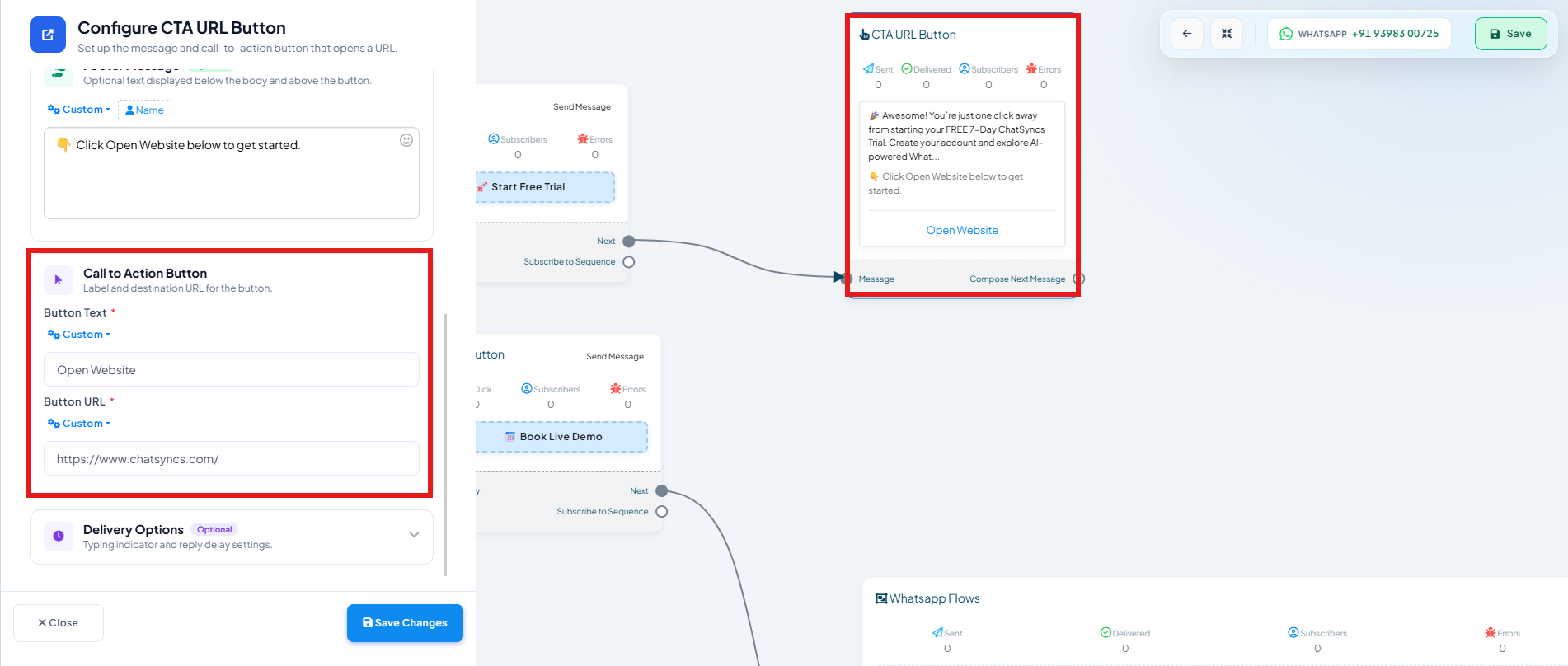
Under Call to Action Button, set:
- Button Text — what the button says, e.g.
Open Website. - Button URL — the page it opens, e.g.
https://www.chatsyncs.com/.
- Button Text — what the button says, e.g.
Save
The button appears in the message preview, and the flow's CTA URL Button node tracks Sent, Delivered, Subscribers, and Errors once it's live.

Add one in a Message Template#
The Message Template builder has a Call To Action button type
(e.g. Visit Website, Call Now, Book Demo) for adding the same kind of button to an approved
template message.
Frequently asked#
What's the difference between a CTA button and a Quick Reply button?
A CTA button opens a website URL when tapped. A Quick Reply button sends text back to your bot instead — see How to Create a Keyword-Based WhatsApp Chatbot for building flows with either.
Can I add a CTA button to a template message, not just a live chat reply?
Yes — the Message Template builder has a Call To Action button field for exactly this.
How do I know if customers are actually clicking the button?
The CTA URL Button node on the flow canvas tracks Sent, Delivered, Subscribers, and Errors counts once the flow is live.
Watch the video lesson

Was this page helpful?
Still stuck? Open a support ticket and our team will help.