ChatSyncs Help Center
DocumentationVideo TutorialsSupport Ticket
Developer APIREST endpoints for messages, contacts and templates.MCP serverConnect Claude, ChatGPT or Cursor to your account.
Sign inSupport sign-in
  • Docs
  • Videos
  • Tickets
  • For developers

    Developer APIREST endpoints for messages, contacts and templates.MCP serverConnect Claude, ChatGPT or Cursor to your account.
ChatSyncs Help Center

Guides, video lessons and support for ChatSyncs.

Help

  • Documentation
  • Video Tutorials
  • Search

Support

  • Get help
  • Your tickets
  • New ticket

Developers

  • MCP ↗
  • Developer API ↗

ChatSyncs

  • Open ChatSyncs ↗
  • Website ↗

© 2026 ChatSyncs

  • Overview
    • What Is Meta — and Why Do You Need a Facebook Account for WhatsApp?
    • What Is the WhatsApp Cloud API?
    • What Is a Meta Business Portfolio? (vs. Business Manager)
    • What Is a Meta Developer Account — and What Is an 'App'?
    • What Is a WABA (WhatsApp Business Account)?
    • Which WhatsApp Connection Method Is Right for You with ChatSyncs?
    • How to Connect Your WhatsApp Business App to ChatSyncs
    • What Is a BSP — and Can You Move to ChatSyncs From One?
    • Business Verification, Display Name, Green Tick — What's the Difference?
    • WhatsApp Business API Explained (And the Verification Myth)
    • Who Charges You for WhatsApp — Meta or ChatSyncs?
    • What WhatsApp API Pricing Really Means
    • WhatsApp Rules: How to Never Get Banned
  • Setup and Configuration
    • How to Connect Your Number to ChatSyncs
    • How to Connect Your WhatsApp Business App to ChatSyncs
    • How to Create a Facebook Business Manager Account for ChatSyncs
    • Set Up Your Meta Business Account for WhatsApp
    • How to Connect Your WhatsApp Account Manually (Alternative Method) in ChatSyncs
    • How to Add Payment Method for WhatsApp API Billing
    • How to Update Your WhatsApp Business Profile
    • How to Migrate from WhatsApp App to a ChatSyncs Business Account
    • How to Disconnect Another Partner From Your WhatsApp Number
    • How to Reconnect Your Disconnected ChatSyncs Account
    • How to Delete Your Phone Number on Meta
    • Transactions in ChatSyncs
  • Bot Settings
    • How Do I Configure General Bot Behavior with ChatSyncs?
    • How Do I Turn On Webhook Triggers for My Bot with ChatSyncs?
    • How Do I Set Up Business Hours for My Bot with ChatSyncs?
    • How Do I Configure Shared Inbox Settings for My Bot with ChatSyncs?
    • How Do I Automatically Add Subscribers to My Email Marketing List with ChatSyncs?
    • How Do I Save Subscriber Details to Google from My Bot with ChatSyncs?
    • How Do I Send an Automatic Email from My Bot with ChatSyncs?
    • How Do I Send an Automatic SMS from My Bot with ChatSyncs?
  • Subscriber Manager
    • What Is Subscriber Manager in ChatSyncs?
    • How Do I Manage Custom Fields, Labels, and Lists with ChatSyncs?
    • How Do I Import Subscribers Using a CSV File with ChatSyncs?
    • How Do I Add a Subscriber Manually with ChatSyncs?
    • How Do I Import Subscribers from Google Sheets with ChatSyncs?
    • How to Import Contacts from Google Contacts in ChatSyncs
  • Automation
    • How to Create a Keyword-Based WhatsApp Chatbot in ChatSyncs
    • How to Set Up Quick Actions (No Match, Get Started, and More) in ChatSyncs
    • How to Make a Chatbot Reply to Any Keyword in ChatSyncs
    • User Input Flow in ChatSyncs
    • WhatsApp Flow Forms in ChatSyncs
    • How to Connect a Bot Flow to External Systems in ChatSyncs
    • How to Build Automatic Follow-Up Chatbots on WhatsApp in ChatSyncs
    • How to Set Up Sales Sequence Chatbots in ChatSyncs
    • How to Add Clickable CTA Buttons in ChatSyncs
    • Audio Message in ChatSyncs
    • How to Add a WhatsApp Chat Widget to Your Website in ChatSyncs
    • How to Use User Input Flow in the Chat Widget in ChatSyncs
    • How to Add ChatSyncs Chat Widget to WordPress
  • Message Templates
    • Creating a WhatsApp Message Template in ChatSyncs
    • Why Templates Get Rejected and How to Fix Them in ChatSyncs
    • Character Limits for Media Message Templates in ChatSyncs
    • Guidelines for Utility and Marketing Templates in ChatSyncs
    • Understanding Conversations and Their Types in ChatSyncs
    • How to Create and Use Carousel Media Templates in ChatSyncs
    • Create Templates in WhatsApp Manager and Sync to ChatSyncs
    • Template Variables vs Custom Variables — What's the Difference with ChatSyncs?
    • Templates to Restart Conversations After Non-Working Hours in ChatSyncs
    • Understanding WhatsApp Quality Rating in ChatSyncs
  • Broadcasting
    • Send a Bulk Message to Many People
  • Shared Inbox
    • Introduction to Shared Inbox in ChatSyncs
    • Filter Conversations by Channel & Account in ChatSyncs
    • Organize Conversations with Labels, Views & Search in ChatSyncs
    • AI Translation & Message Rewrite in ChatSyncs
    • Team Collaboration & Agent Assignment in ChatSyncs
    • Messaging Tools: Canned Responses, Templates & Attachments in ChatSyncs
    • Follow-up Reminders & Message Sequences in ChatSyncs
    • Managing Customer Data with Custom Fields in ChatSyncs
    • Settings Menu: Groupchat Widget, Dark Mode, Follow-up List & More in ChatSyncs
    • Install ChatSyncs on Android
    • Install ChatSyncs on iOS
  • Webhooks
    • Webhook for Messages & Status Changes in ChatSyncs
    • Webhook on Keyword Trigger in ChatSyncs
    • Webhook on Button Click in ChatSyncs
    • Webhook for Input Flow in ChatSyncs
    • Webhook for WhatsApp Flows in ChatSyncs
  • Webhook Workflow
    • Create a Webhook Workflow in ChatSyncs
    • Webhook Automation Settings in ChatSyncs
    • Webhook Workflow Reporting in ChatSyncs
  • Integrations
    • How to Integrate Shopify for WhatsApp Automation in ChatSyncs
    • How to Connect Google to ChatSyncs
    • Google Sheet Fetch in ChatSyncs
    • How to Send Automated WhatsApp Messages on WP Form Submission in ChatSyncs
    • How to Set Up SMS Marketing in ChatSyncs
    • HTTP API Integration in ChatSyncs
    • Email Integration in ChatSyncs
    • How Do I Connect an SMTP Email Provider with ChatSyncs?
    • How Do I Connect Mailgun for Sending Email with ChatSyncs?
    • How Do I Connect Postmark for Transactional Email with ChatSyncs?
    • SMS Integration in ChatSyncs
    • How Do I Connect Twilio for SMS with ChatSyncs?
    • How Do I Connect Africa's Talking for SMS with ChatSyncs?
    • How Do I Connect a Custom SMS Gateway via HTTP GET with ChatSyncs?
    • Auto Responder Integration in ChatSyncs
    • How Do I Connect Brevo for Auto Responder with ChatSyncs?
    • How Do I Connect Mailchimp for Auto Responder with ChatSyncs?
    • How Do I Connect ActiveCampaign for Auto Responder with ChatSyncs?
    • How Do I Connect Mautic for Auto Responder with ChatSyncs?
  • AI Agents
    • How to Create Your First AI Agent in ChatSyncs
    • How to Train Your AI Chatbot in ChatSyncs
    • Agent Routing in ChatSyncs
    • AI Agent Actions in ChatSyncs
    • How Do I Restrict AI on Specific Keywords with ChatSyncs?
    • How Do I Auto-Assign Conversations to a Department with ChatSyncs?
    • How Do I Build a Multi-Agent AI Workforce with ChatSyncs?
  • Team Management
    • Introduction to Team Management in ChatSyncs
    • How to Add and Manage Team Members in ChatSyncs
    • How to Set Up User Roles and Permissions in ChatSyncs
    • Security in ChatSyncs
  • Account Safety
    • WhatsApp Account Bans: Causes and How to Stay Protected in ChatSyncs
    • How to Appeal a WhatsApp Business API Ban and Get Your Number Back in ChatSyncs
MCP ↗Developer API ↗
Browse guides
  • Overview
    • What Is Meta — and Why Do You Need a Facebook Account for WhatsApp?
    • What Is the WhatsApp Cloud API?
    • What Is a Meta Business Portfolio? (vs. Business Manager)
    • What Is a Meta Developer Account — and What Is an 'App'?
    • What Is a WABA (WhatsApp Business Account)?
    • Which WhatsApp Connection Method Is Right for You with ChatSyncs?
    • How to Connect Your WhatsApp Business App to ChatSyncs
    • What Is a BSP — and Can You Move to ChatSyncs From One?
    • Business Verification, Display Name, Green Tick — What's the Difference?
    • WhatsApp Business API Explained (And the Verification Myth)
    • Who Charges You for WhatsApp — Meta or ChatSyncs?
    • What WhatsApp API Pricing Really Means
    • WhatsApp Rules: How to Never Get Banned
  • Setup and Configuration
    • How to Connect Your Number to ChatSyncs
    • How to Connect Your WhatsApp Business App to ChatSyncs
    • How to Create a Facebook Business Manager Account for ChatSyncs
    • Set Up Your Meta Business Account for WhatsApp
    • How to Connect Your WhatsApp Account Manually (Alternative Method) in ChatSyncs
    • How to Add Payment Method for WhatsApp API Billing
    • How to Update Your WhatsApp Business Profile
    • How to Migrate from WhatsApp App to a ChatSyncs Business Account
    • How to Disconnect Another Partner From Your WhatsApp Number
    • How to Reconnect Your Disconnected ChatSyncs Account
    • How to Delete Your Phone Number on Meta
    • Transactions in ChatSyncs
  • Bot Settings
    • How Do I Configure General Bot Behavior with ChatSyncs?
    • How Do I Turn On Webhook Triggers for My Bot with ChatSyncs?
    • How Do I Set Up Business Hours for My Bot with ChatSyncs?
    • How Do I Configure Shared Inbox Settings for My Bot with ChatSyncs?
    • How Do I Automatically Add Subscribers to My Email Marketing List with ChatSyncs?
    • How Do I Save Subscriber Details to Google from My Bot with ChatSyncs?
    • How Do I Send an Automatic Email from My Bot with ChatSyncs?
    • How Do I Send an Automatic SMS from My Bot with ChatSyncs?
  • Subscriber Manager
    • What Is Subscriber Manager in ChatSyncs?
    • How Do I Manage Custom Fields, Labels, and Lists with ChatSyncs?
    • How Do I Import Subscribers Using a CSV File with ChatSyncs?
    • How Do I Add a Subscriber Manually with ChatSyncs?
    • How Do I Import Subscribers from Google Sheets with ChatSyncs?
    • How to Import Contacts from Google Contacts in ChatSyncs
  • Automation
    • How to Create a Keyword-Based WhatsApp Chatbot in ChatSyncs
    • How to Set Up Quick Actions (No Match, Get Started, and More) in ChatSyncs
    • How to Make a Chatbot Reply to Any Keyword in ChatSyncs
    • User Input Flow in ChatSyncs
    • WhatsApp Flow Forms in ChatSyncs
    • How to Connect a Bot Flow to External Systems in ChatSyncs
    • How to Build Automatic Follow-Up Chatbots on WhatsApp in ChatSyncs
    • How to Set Up Sales Sequence Chatbots in ChatSyncs
    • How to Add Clickable CTA Buttons in ChatSyncs
    • Audio Message in ChatSyncs
    • How to Add a WhatsApp Chat Widget to Your Website in ChatSyncs
    • How to Use User Input Flow in the Chat Widget in ChatSyncs
    • How to Add ChatSyncs Chat Widget to WordPress
  • Message Templates
    • Creating a WhatsApp Message Template in ChatSyncs
    • Why Templates Get Rejected and How to Fix Them in ChatSyncs
    • Character Limits for Media Message Templates in ChatSyncs
    • Guidelines for Utility and Marketing Templates in ChatSyncs
    • Understanding Conversations and Their Types in ChatSyncs
    • How to Create and Use Carousel Media Templates in ChatSyncs
    • Create Templates in WhatsApp Manager and Sync to ChatSyncs
    • Template Variables vs Custom Variables — What's the Difference with ChatSyncs?
    • Templates to Restart Conversations After Non-Working Hours in ChatSyncs
    • Understanding WhatsApp Quality Rating in ChatSyncs
  • Broadcasting
    • Send a Bulk Message to Many People
  • Shared Inbox
    • Introduction to Shared Inbox in ChatSyncs
    • Filter Conversations by Channel & Account in ChatSyncs
    • Organize Conversations with Labels, Views & Search in ChatSyncs
    • AI Translation & Message Rewrite in ChatSyncs
    • Team Collaboration & Agent Assignment in ChatSyncs
    • Messaging Tools: Canned Responses, Templates & Attachments in ChatSyncs
    • Follow-up Reminders & Message Sequences in ChatSyncs
    • Managing Customer Data with Custom Fields in ChatSyncs
    • Settings Menu: Groupchat Widget, Dark Mode, Follow-up List & More in ChatSyncs
    • Install ChatSyncs on Android
    • Install ChatSyncs on iOS
  • Webhooks
    • Webhook for Messages & Status Changes in ChatSyncs
    • Webhook on Keyword Trigger in ChatSyncs
    • Webhook on Button Click in ChatSyncs
    • Webhook for Input Flow in ChatSyncs
    • Webhook for WhatsApp Flows in ChatSyncs
  • Webhook Workflow
    • Create a Webhook Workflow in ChatSyncs
    • Webhook Automation Settings in ChatSyncs
    • Webhook Workflow Reporting in ChatSyncs
  • Integrations
    • How to Integrate Shopify for WhatsApp Automation in ChatSyncs
    • How to Connect Google to ChatSyncs
    • Google Sheet Fetch in ChatSyncs
    • How to Send Automated WhatsApp Messages on WP Form Submission in ChatSyncs
    • How to Set Up SMS Marketing in ChatSyncs
    • HTTP API Integration in ChatSyncs
    • Email Integration in ChatSyncs
    • How Do I Connect an SMTP Email Provider with ChatSyncs?
    • How Do I Connect Mailgun for Sending Email with ChatSyncs?
    • How Do I Connect Postmark for Transactional Email with ChatSyncs?
    • SMS Integration in ChatSyncs
    • How Do I Connect Twilio for SMS with ChatSyncs?
    • How Do I Connect Africa's Talking for SMS with ChatSyncs?
    • How Do I Connect a Custom SMS Gateway via HTTP GET with ChatSyncs?
    • Auto Responder Integration in ChatSyncs
    • How Do I Connect Brevo for Auto Responder with ChatSyncs?
    • How Do I Connect Mailchimp for Auto Responder with ChatSyncs?
    • How Do I Connect ActiveCampaign for Auto Responder with ChatSyncs?
    • How Do I Connect Mautic for Auto Responder with ChatSyncs?
  • AI Agents
    • How to Create Your First AI Agent in ChatSyncs
    • How to Train Your AI Chatbot in ChatSyncs
    • Agent Routing in ChatSyncs
    • AI Agent Actions in ChatSyncs
    • How Do I Restrict AI on Specific Keywords with ChatSyncs?
    • How Do I Auto-Assign Conversations to a Department with ChatSyncs?
    • How Do I Build a Multi-Agent AI Workforce with ChatSyncs?
  • Team Management
    • Introduction to Team Management in ChatSyncs
    • How to Add and Manage Team Members in ChatSyncs
    • How to Set Up User Roles and Permissions in ChatSyncs
    • Security in ChatSyncs
  • Account Safety
    • WhatsApp Account Bans: Causes and How to Stay Protected in ChatSyncs
    • How to Appeal a WhatsApp Business API Ban and Get Your Number Back in ChatSyncs
MCP ↗Developer API ↗
DocumentationIntegrations

Google Sheet Fetch in ChatSyncs

Google Sheet Fetch lets a WhatsApp bot look up a row in a connected sheet mid-conversation and reply using its values — for an employee directory, catalog, or order tracker.

On this page
  • How it works
  • Prerequisite: create matching Custom Fields first
  • Set up the fetch campaign
  • Find Google Sheet Fetch in Integrations
  • Connect a Google account (if you haven't already)
  • Create the campaign
  • Search Data and Assign
  • Use it inside a Keyword Replies flow
  • More examples
  • Benefits
  • Best practices
  • Frequently asked
ChatSyncs left navigation with Chatbot Manager selected, the Integrations tab, and the Google Sheets sub-tab showing Google Sheet Data Fetch Campaigns with Connect Google Account and Create buttons

Google Sheet Fetch lets a WhatsApp bot look something up in a Google Sheet in the middle of a conversation, so it can reply with real information — instead of that information being typed into the bot itself.

Think of it like this: Google Sheet Integration — see How to Connect Google to ChatSyncs — is the bot writing into your sheet. Google Sheet Fetch is the opposite — the bot reading from your sheet.

Example: say you keep an employee list in a Google Sheet. Someone messages the bot with an Employee ID, and the bot looks that row up and replies with the person's name, department, and phone number — pulled straight from the sheet.

The best part: if you edit the sheet — add a new employee, fix a phone number — the bot's next reply already uses the updated info. You don't have to touch the bot at all. This makes it great for anything that changes often: an employee directory, a price list, order status, appointment schedules, inventory, student records, an FAQ list, branch info, or membership details.

How it works#

  1. 1

    A subscriber sends a message

    e.g. they message the bot with an ID or trigger keyword.

  2. 2

    ChatSyncs searches the sheet

    using whichever column you configured as the Search Column.

  3. 3

    The matching row is found

    the one row whose Search Column value matches what the subscriber sent (or whatever value you configured as the Search Value).

  4. 4

    The needed column values are read

    from that row.

  5. 5

    Those values are stored as chatbot variables

    ready to use anywhere in a reply.

  6. 6

    The bot replies using those variables

    a personalized message built from live spreadsheet data.

Code
Subscriber message
        │
        ▼
ChatSyncs searches the Search Column
        │
        ▼
Matching row found
        │
        ▼
Column values → chatbot variables
        │
        ▼
Personalized reply sent

Prerequisite: create matching Custom Fields first#

This is the step that's easy to miss, and the most common reason Google Sheet Fetch shows an error. Every column you plan to map under Assign must already exist as a Subscriber Custom Field — if the field doesn't exist yet, it won't be available to select as a Data Field, and the mapping (or the bot reply using it) will fail.

Custom Fields are created under Subscriber Manager, not inside the Google Sheets integration itself:

  1. 1

    Open Manage Custom Fields

    In Subscriber Manager, click Manage, then Custom Fields — this opens the Manage Custom Fields panel.
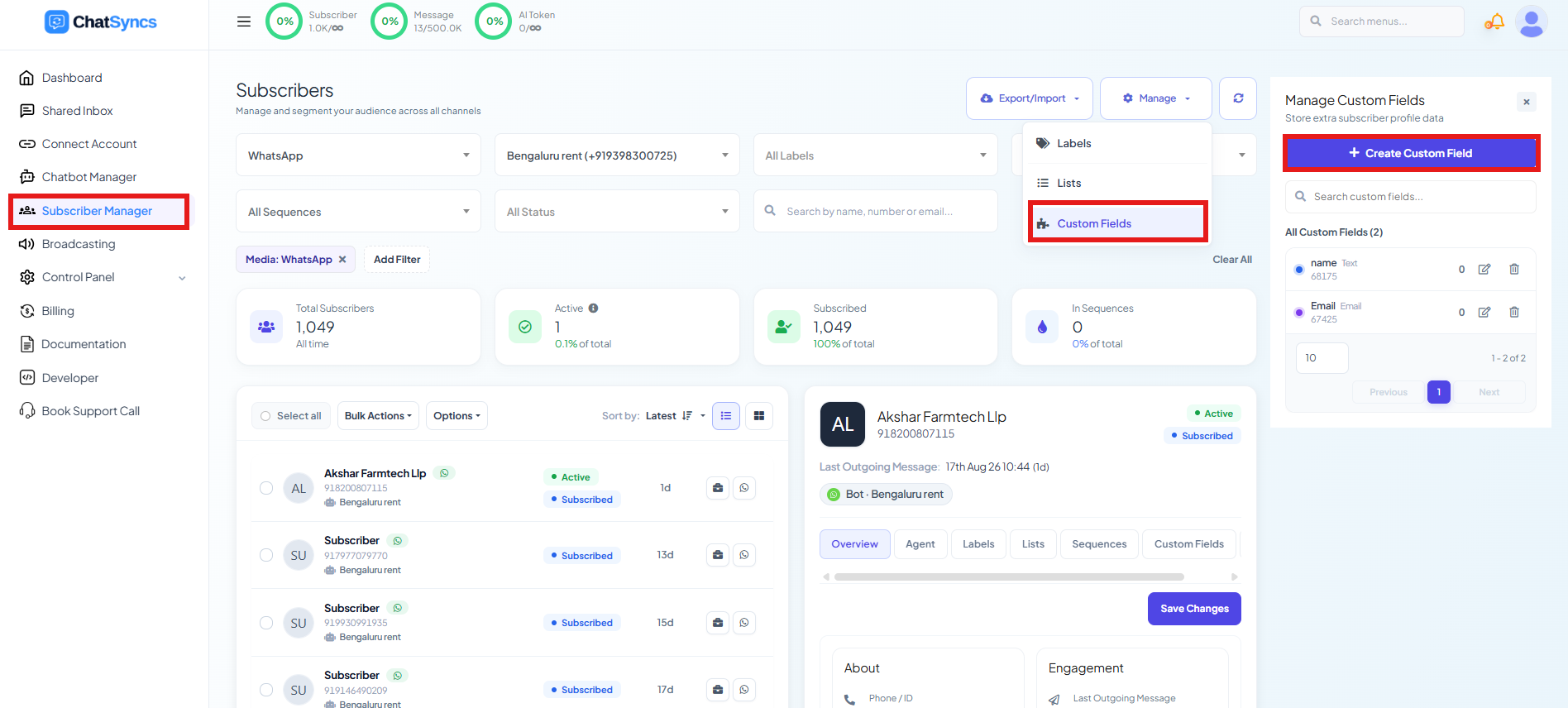
    Manage Custom Fields panel listing existing fields, with a Create Custom Field button at the top
  2. 2

    Create a field for every column you'll assign

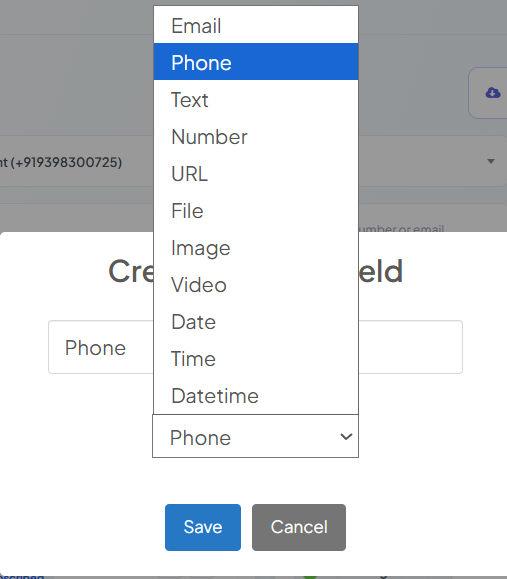
    Click Create Custom Field, give it a name, and pick a Reply Type matching what the column holds.
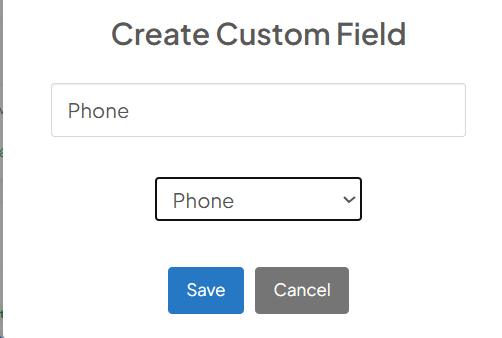
    Create Custom Field modal with the field name set to Phone and Reply Type set to Phone
    Reply Type dropdown open showing Email, Phone, Text, Number, URL, File, Image, Video, Date, Time, and Datetime options
  3. 3

    Repeat for every field your reply will use

    For an employee-lookup bot, create one field for each column you plan to search by or return:

    NameReply Type
    PhonePhone
    EmailEmail
    DesignationText
    DepartmentText
    NameText
    employee idText

Set up the fetch campaign#

Find Google Sheet Fetch in Integrations#

Open Chatbot Manager → [your bot] → Integrations, then the Google Sheets sub-tab — it sits alongside HTTP API, Autoresponder, Email, and SMS.

Chatbot Manager tab bar with Automation, Data Collection, AI, Engagement, Commerce, and Integrations tabs, and the Integrations sub-tabs HTTP API, Google Sheets (selected), Autoresponder, Email, SMS

Connect a Google account (if you haven't already)#

Click Connect Google Account at the top of the page and sign in — this is the same Google connection used by Google Sheet Integration — see How to Connect Google to ChatSyncs — for writing to sheets, so if you've already connected one there, it's available here too.

Google Sheet Data Fetch Campaigns page with the Connect Google Account button highlighted, a campaigns table, and a Connect Your Google Sheet form below it

Create the campaign#

In the Connect Your Google Sheet panel, give the connection an API Name, then pick the sheet from Google Sheet List — it shows your connected Google account and every sheet available to it:

Google Sheet List dropdown open showing the connected Google account email and a list of sheets to choose from

For example, a sheet called Customer Data containing an employee directory:

Google Sheet named Customer Data with columns Employee ID, Name, Department, Designation, Email, Phone and five rows of employee records
Employee IDNameDepartmentDesignationEmailPhone
EMP001Rahul ReddyITSoftware Engineerrahul@company.com919959623255
EMP002Priya SharmaHRHR Executivepriya@company.com919123456789
EMP003Arjun KumarSalesSales Managerarjun@company.com919988776655
EMP004Sneha PatelFinanceAccountantsneha@company.com919012345678
EMP005Vikram SinghMarketingMarketing Leadvikram@company.com919871234567

The sheet's first row must be column headers — every column below it becomes a field you can search by or assign.

Search Data and Assign#

Search Data — pick which sheet column to search by (File Header), and what subscriber value to compare it against (Data Field):

Search Data section with File Header set to Phone and Data Field set to Subscriber ID / Phone Number
File Header dropdown open showing sheet columns Employee ID, Name, Department, Designation, Email, and Phone (selected)
Data Field dropdown open under a Search Column group, showing Subscriber ID / Phone Number (selected) and Subscriber Message

Here, Phone (the sheet column) is matched against Subscriber ID / Phone Number (the subscriber's own WhatsApp number) — so the bot automatically looks up the row for whoever is messaging it, with no manual ID entry needed.

Assign — map every other column you want back to the Custom Field you created for it. Click + Map Data to add another File Header/Data Field pair:

Assign section with five mapped rows: Employee ID to Employee Id, Department to Department, Designation to Designation, Name to name, and Email to Email, with a Map Data button

Click Verify Connection to confirm the sheet is reachable and every mapped field returns real data.

If a Data Field you need isn't in the dropdown, stop and go create it as a Subscriber Custom Field first (see the prerequisite above) — don't try to type a new name in on the fly.

Use it inside a Keyword Replies flow#

Once the campaign is configured, the actual lookup happens inside a Keyword Replies flow (under Chatbot Manager → [your bot] → Automation → Keyword Replies), as a Google Sheet Data Fetch flow step:

Chatbot Manager Automation tab with Keyword Replies sub-tab selected, showing a list of existing flows and a Create button
Bot flow with a Start Bot Flow node triggered by the keyword data, connected to a Google Sheet Data Fetch node named Google Data, connected to a Text reply node, with a Configure Text Message panel showing the reply using hash-wrapped field variables
  1. 1

    Start Bot Flow

    Set a trigger, e.g. the keyword data with Exact keyword match.

  2. 2

    Add a Google Sheet Data Fetch step

    Pick the fetch campaign you configured above (e.g. Google Data). Use Test Google Sheet New to try it against a real subscriber while building the flow.

  3. 3

    Reply using the fetched fields

    Add a Text step and reference each custom field wrapped in #...#:

    Code
    Here are your details
    Name: #Name#
    Employee id: #employee id#
    Department: #Department#
    Designation: #Designation#,
    Email: #Email#
    
    Thank You!
  4. 4

    Save

    Click Save (or Save Changes) on the flow, and Save in the top bar to publish it to the connected WhatsApp number.

With the example data above, a subscriber whose WhatsApp number matches EMP001's Phone gets:

Code
Here are your details
Name: Rahul Reddy
Employee id: EMP001
Department: IT
Designation: Software Engineer,
Email: rahul@company.com

Thank You!

More examples#

Google Sheet Fetch works the same way for any lookup — only the Search Column and the mapped fields change:

Business scenarioSearch ColumnReturns
Employee lookupEmployee IDName, Department, Phone
Product lookupProduct IDProduct Name, Price, Stock
HospitalDoctor IDDoctor Name, Department, Consultation Fee, Available Time
Customer informationCustomer IDCustomer Name, Membership Status, Contact Details
Order trackingOrder IDOrder Status, Courier Name, Tracking Number

Product lookup example — sheet:

Product IDProductPriceStock
P001Wireless Mouse79945

Mapped to product_name, product_price, product_stock, the reply becomes:

Code
Product: Wireless Mouse
Price: ₹799
Available Stock: 45

Benefits#

  • No coding required.
  • Always uses live data — update the sheet, not the bot flow.
  • One search can return several fields at once.
  • Works for practically any lookup-style business process.
  • Cuts down on manually rebuilding flows when information changes.

Best practices#

  • Create every Subscriber Custom Field before mapping it — this is the #1 cause of a broken or erroring fetch.
  • Always click Verify Connection after mapping fields — a typo in a File Header (it must match the sheet's actual column header exactly) makes the fetch silently return no data instead of erroring.
  • Keep sheet column headers unique and consistent — don't rename a column without updating the mapping.
  • Avoid duplicate values in the Search Column — if two rows share the same ID or phone number, the fetch can return the wrong row.
  • Test the full bot flow (not just Verify Connection) before publishing, using Test Google Sheet New inside the flow builder.

Frequently asked#

How do I look up a customer's order from a Google Sheet inside a bot flow?

Create a Google Sheet Fetch campaign, map the sheet's phone-number column to the subscriber's phone number under Search Data, then map the columns you want back (e.g. Customer Name, Order ID) under Assign to matching Subscriber Custom Fields. Add a Google Sheet Data Fetch step in a Keyword Replies flow and reference the fields in your reply.

Why is my Google Sheet Fetch showing an error or not returning data?

The most common cause: one of the fields you mapped under Assign doesn't exist yet as a Subscriber Custom Field. Go to Subscriber Manager → Manage → Custom Fields, create it there first, then come back and map it.

What's the difference between Search Data and Assign?

Search Data tells ChatSyncs which sheet column to match against (how to find the right row — usually the subscriber's phone number). Assign tells it which columns to pull back, and which Custom Field to store each one in.

Do I need to connect Google Sheets before I can fetch data from one?

Yes — How to Connect Google to ChatSyncs must be connected first so ChatSyncs has access to the account that owns the sheet.

How do I actually use the fetched data in a WhatsApp reply?

Add a Google Sheet Data Fetch step to a Keyword Replies flow, then in the following Text step, reference each field as #FieldName# — matching the Custom Field's name exactly.

Was this page helpful?

Still stuck? Open a support ticket and our team will help.

PreviousHow to Connect Google to ChatSyncsNext How to Send Automated WhatsApp Messages on WP Form Submission in ChatSyncs

On this page

  • How it works
  • Prerequisite: create matching Custom Fields first
  • Set up the fetch campaign
  • Find Google Sheet Fetch in Integrations
  • Connect a Google account (if you haven't already)
  • Create the campaign
  • Search Data and Assign
  • Use it inside a Keyword Replies flow
  • More examples
  • Benefits
  • Best practices
  • Frequently asked