ChatSyncs Help Center
DocumentationVideo TutorialsSupport Ticket
Developer APIREST endpoints for messages, contacts and templates.MCP serverConnect Claude, ChatGPT or Cursor to your account.
Sign inSupport sign-in
  • Docs
  • Videos
  • Tickets
  • For developers

    Developer APIREST endpoints for messages, contacts and templates.MCP serverConnect Claude, ChatGPT or Cursor to your account.
ChatSyncs Help Center

Guides, video lessons and support for ChatSyncs.

Help

  • Documentation
  • Video Tutorials
  • Search

Support

  • Get help
  • Your tickets
  • New ticket

Developers

  • MCP ↗
  • Developer API ↗

ChatSyncs

  • Open ChatSyncs ↗
  • Website ↗

© 2026 ChatSyncs

  • Overview
    • What Is Meta — and Why Do You Need a Facebook Account for WhatsApp?
    • What Is the WhatsApp Cloud API?
    • What Is a Meta Business Portfolio? (vs. Business Manager)
    • What Is a Meta Developer Account — and What Is an 'App'?
    • What Is a WABA (WhatsApp Business Account)?
    • Which WhatsApp Connection Method Is Right for You with ChatSyncs?
    • How to Connect Your WhatsApp Business App to ChatSyncs
    • What Is a BSP — and Can You Move to ChatSyncs From One?
    • Business Verification, Display Name, Green Tick — What's the Difference?
    • WhatsApp Business API Explained (And the Verification Myth)
    • Who Charges You for WhatsApp — Meta or ChatSyncs?
    • What WhatsApp API Pricing Really Means
    • WhatsApp Rules: How to Never Get Banned
  • Setup and Configuration
    • How to Connect Your Number to ChatSyncs
    • How to Connect Your WhatsApp Business App to ChatSyncs
    • How to Create a Facebook Business Manager Account for ChatSyncs
    • Set Up Your Meta Business Account for WhatsApp
    • How to Connect Your WhatsApp Account Manually (Alternative Method) in ChatSyncs
    • How to Add Payment Method for WhatsApp API Billing
    • How to Update Your WhatsApp Business Profile
    • How to Migrate from WhatsApp App to a ChatSyncs Business Account
    • How to Disconnect Another Partner From Your WhatsApp Number
    • How to Reconnect Your Disconnected ChatSyncs Account
    • How to Delete Your Phone Number on Meta
    • Transactions in ChatSyncs
  • Bot Settings
    • How Do I Configure General Bot Behavior with ChatSyncs?
    • How Do I Turn On Webhook Triggers for My Bot with ChatSyncs?
    • How Do I Set Up Business Hours for My Bot with ChatSyncs?
    • How Do I Configure Shared Inbox Settings for My Bot with ChatSyncs?
    • How Do I Automatically Add Subscribers to My Email Marketing List with ChatSyncs?
    • How Do I Save Subscriber Details to Google from My Bot with ChatSyncs?
    • How Do I Send an Automatic Email from My Bot with ChatSyncs?
    • How Do I Send an Automatic SMS from My Bot with ChatSyncs?
  • Subscriber Manager
    • What Is Subscriber Manager in ChatSyncs?
    • How Do I Manage Custom Fields, Labels, and Lists with ChatSyncs?
    • How Do I Import Subscribers Using a CSV File with ChatSyncs?
    • How Do I Add a Subscriber Manually with ChatSyncs?
    • How Do I Import Subscribers from Google Sheets with ChatSyncs?
    • How to Import Contacts from Google Contacts in ChatSyncs
  • Automation
    • How to Create a Keyword-Based WhatsApp Chatbot in ChatSyncs
    • How to Set Up Quick Actions (No Match, Get Started, and More) in ChatSyncs
    • How to Make a Chatbot Reply to Any Keyword in ChatSyncs
    • User Input Flow in ChatSyncs
    • WhatsApp Flow Forms in ChatSyncs
    • How to Connect a Bot Flow to External Systems in ChatSyncs
    • How to Build Automatic Follow-Up Chatbots on WhatsApp in ChatSyncs
    • How to Set Up Sales Sequence Chatbots in ChatSyncs
    • How to Add Clickable CTA Buttons in ChatSyncs
    • Audio Message in ChatSyncs
    • How to Add a WhatsApp Chat Widget to Your Website in ChatSyncs
    • How to Use User Input Flow in the Chat Widget in ChatSyncs
    • How to Add ChatSyncs Chat Widget to WordPress
  • Message Templates
    • Creating a WhatsApp Message Template in ChatSyncs
    • Why Templates Get Rejected and How to Fix Them in ChatSyncs
    • Character Limits for Media Message Templates in ChatSyncs
    • Guidelines for Utility and Marketing Templates in ChatSyncs
    • Understanding Conversations and Their Types in ChatSyncs
    • How to Create and Use Carousel Media Templates in ChatSyncs
    • Create Templates in WhatsApp Manager and Sync to ChatSyncs
    • Template Variables vs Custom Variables — What's the Difference with ChatSyncs?
    • Templates to Restart Conversations After Non-Working Hours in ChatSyncs
    • Understanding WhatsApp Quality Rating in ChatSyncs
  • Broadcasting
    • Send a Bulk Message to Many People
  • Shared Inbox
    • Introduction to Shared Inbox in ChatSyncs
    • Filter Conversations by Channel & Account in ChatSyncs
    • Organize Conversations with Labels, Views & Search in ChatSyncs
    • AI Translation & Message Rewrite in ChatSyncs
    • Team Collaboration & Agent Assignment in ChatSyncs
    • Messaging Tools: Canned Responses, Templates & Attachments in ChatSyncs
    • Follow-up Reminders & Message Sequences in ChatSyncs
    • Managing Customer Data with Custom Fields in ChatSyncs
    • Settings Menu: Groupchat Widget, Dark Mode, Follow-up List & More in ChatSyncs
    • Install ChatSyncs on Android
    • Install ChatSyncs on iOS
  • Webhooks
    • Webhook for Messages & Status Changes in ChatSyncs
    • Webhook on Keyword Trigger in ChatSyncs
    • Webhook on Button Click in ChatSyncs
    • Webhook for Input Flow in ChatSyncs
    • Webhook for WhatsApp Flows in ChatSyncs
  • Webhook Workflow
    • Create a Webhook Workflow in ChatSyncs
    • Webhook Automation Settings in ChatSyncs
    • Webhook Workflow Reporting in ChatSyncs
  • Integrations
    • How to Integrate Shopify for WhatsApp Automation in ChatSyncs
    • How to Connect Google to ChatSyncs
    • Google Sheet Fetch in ChatSyncs
    • How to Send Automated WhatsApp Messages on WP Form Submission in ChatSyncs
    • How to Set Up SMS Marketing in ChatSyncs
    • HTTP API Integration in ChatSyncs
    • Email Integration in ChatSyncs
    • How Do I Connect an SMTP Email Provider with ChatSyncs?
    • How Do I Connect Mailgun for Sending Email with ChatSyncs?
    • How Do I Connect Postmark for Transactional Email with ChatSyncs?
    • SMS Integration in ChatSyncs
    • How Do I Connect Twilio for SMS with ChatSyncs?
    • How Do I Connect Africa's Talking for SMS with ChatSyncs?
    • How Do I Connect a Custom SMS Gateway via HTTP GET with ChatSyncs?
    • Auto Responder Integration in ChatSyncs
    • How Do I Connect Brevo for Auto Responder with ChatSyncs?
    • How Do I Connect Mailchimp for Auto Responder with ChatSyncs?
    • How Do I Connect ActiveCampaign for Auto Responder with ChatSyncs?
    • How Do I Connect Mautic for Auto Responder with ChatSyncs?
  • AI Agents
    • How to Create Your First AI Agent in ChatSyncs
    • How to Train Your AI Chatbot in ChatSyncs
    • Agent Routing in ChatSyncs
    • AI Agent Actions in ChatSyncs
    • How Do I Restrict AI on Specific Keywords with ChatSyncs?
    • How Do I Auto-Assign Conversations to a Department with ChatSyncs?
    • How Do I Build a Multi-Agent AI Workforce with ChatSyncs?
  • Team Management
    • Introduction to Team Management in ChatSyncs
    • How to Add and Manage Team Members in ChatSyncs
    • How to Set Up User Roles and Permissions in ChatSyncs
    • Security in ChatSyncs
  • Account Safety
    • WhatsApp Account Bans: Causes and How to Stay Protected in ChatSyncs
    • How to Appeal a WhatsApp Business API Ban and Get Your Number Back in ChatSyncs
MCP ↗Developer API ↗
Browse guides
  • Overview
    • What Is Meta — and Why Do You Need a Facebook Account for WhatsApp?
    • What Is the WhatsApp Cloud API?
    • What Is a Meta Business Portfolio? (vs. Business Manager)
    • What Is a Meta Developer Account — and What Is an 'App'?
    • What Is a WABA (WhatsApp Business Account)?
    • Which WhatsApp Connection Method Is Right for You with ChatSyncs?
    • How to Connect Your WhatsApp Business App to ChatSyncs
    • What Is a BSP — and Can You Move to ChatSyncs From One?
    • Business Verification, Display Name, Green Tick — What's the Difference?
    • WhatsApp Business API Explained (And the Verification Myth)
    • Who Charges You for WhatsApp — Meta or ChatSyncs?
    • What WhatsApp API Pricing Really Means
    • WhatsApp Rules: How to Never Get Banned
  • Setup and Configuration
    • How to Connect Your Number to ChatSyncs
    • How to Connect Your WhatsApp Business App to ChatSyncs
    • How to Create a Facebook Business Manager Account for ChatSyncs
    • Set Up Your Meta Business Account for WhatsApp
    • How to Connect Your WhatsApp Account Manually (Alternative Method) in ChatSyncs
    • How to Add Payment Method for WhatsApp API Billing
    • How to Update Your WhatsApp Business Profile
    • How to Migrate from WhatsApp App to a ChatSyncs Business Account
    • How to Disconnect Another Partner From Your WhatsApp Number
    • How to Reconnect Your Disconnected ChatSyncs Account
    • How to Delete Your Phone Number on Meta
    • Transactions in ChatSyncs
  • Bot Settings
    • How Do I Configure General Bot Behavior with ChatSyncs?
    • How Do I Turn On Webhook Triggers for My Bot with ChatSyncs?
    • How Do I Set Up Business Hours for My Bot with ChatSyncs?
    • How Do I Configure Shared Inbox Settings for My Bot with ChatSyncs?
    • How Do I Automatically Add Subscribers to My Email Marketing List with ChatSyncs?
    • How Do I Save Subscriber Details to Google from My Bot with ChatSyncs?
    • How Do I Send an Automatic Email from My Bot with ChatSyncs?
    • How Do I Send an Automatic SMS from My Bot with ChatSyncs?
  • Subscriber Manager
    • What Is Subscriber Manager in ChatSyncs?
    • How Do I Manage Custom Fields, Labels, and Lists with ChatSyncs?
    • How Do I Import Subscribers Using a CSV File with ChatSyncs?
    • How Do I Add a Subscriber Manually with ChatSyncs?
    • How Do I Import Subscribers from Google Sheets with ChatSyncs?
    • How to Import Contacts from Google Contacts in ChatSyncs
  • Automation
    • How to Create a Keyword-Based WhatsApp Chatbot in ChatSyncs
    • How to Set Up Quick Actions (No Match, Get Started, and More) in ChatSyncs
    • How to Make a Chatbot Reply to Any Keyword in ChatSyncs
    • User Input Flow in ChatSyncs
    • WhatsApp Flow Forms in ChatSyncs
    • How to Connect a Bot Flow to External Systems in ChatSyncs
    • How to Build Automatic Follow-Up Chatbots on WhatsApp in ChatSyncs
    • How to Set Up Sales Sequence Chatbots in ChatSyncs
    • How to Add Clickable CTA Buttons in ChatSyncs
    • Audio Message in ChatSyncs
    • How to Add a WhatsApp Chat Widget to Your Website in ChatSyncs
    • How to Use User Input Flow in the Chat Widget in ChatSyncs
    • How to Add ChatSyncs Chat Widget to WordPress
  • Message Templates
    • Creating a WhatsApp Message Template in ChatSyncs
    • Why Templates Get Rejected and How to Fix Them in ChatSyncs
    • Character Limits for Media Message Templates in ChatSyncs
    • Guidelines for Utility and Marketing Templates in ChatSyncs
    • Understanding Conversations and Their Types in ChatSyncs
    • How to Create and Use Carousel Media Templates in ChatSyncs
    • Create Templates in WhatsApp Manager and Sync to ChatSyncs
    • Template Variables vs Custom Variables — What's the Difference with ChatSyncs?
    • Templates to Restart Conversations After Non-Working Hours in ChatSyncs
    • Understanding WhatsApp Quality Rating in ChatSyncs
  • Broadcasting
    • Send a Bulk Message to Many People
  • Shared Inbox
    • Introduction to Shared Inbox in ChatSyncs
    • Filter Conversations by Channel & Account in ChatSyncs
    • Organize Conversations with Labels, Views & Search in ChatSyncs
    • AI Translation & Message Rewrite in ChatSyncs
    • Team Collaboration & Agent Assignment in ChatSyncs
    • Messaging Tools: Canned Responses, Templates & Attachments in ChatSyncs
    • Follow-up Reminders & Message Sequences in ChatSyncs
    • Managing Customer Data with Custom Fields in ChatSyncs
    • Settings Menu: Groupchat Widget, Dark Mode, Follow-up List & More in ChatSyncs
    • Install ChatSyncs on Android
    • Install ChatSyncs on iOS
  • Webhooks
    • Webhook for Messages & Status Changes in ChatSyncs
    • Webhook on Keyword Trigger in ChatSyncs
    • Webhook on Button Click in ChatSyncs
    • Webhook for Input Flow in ChatSyncs
    • Webhook for WhatsApp Flows in ChatSyncs
  • Webhook Workflow
    • Create a Webhook Workflow in ChatSyncs
    • Webhook Automation Settings in ChatSyncs
    • Webhook Workflow Reporting in ChatSyncs
  • Integrations
    • How to Integrate Shopify for WhatsApp Automation in ChatSyncs
    • How to Connect Google to ChatSyncs
    • Google Sheet Fetch in ChatSyncs
    • How to Send Automated WhatsApp Messages on WP Form Submission in ChatSyncs
    • How to Set Up SMS Marketing in ChatSyncs
    • HTTP API Integration in ChatSyncs
    • Email Integration in ChatSyncs
    • How Do I Connect an SMTP Email Provider with ChatSyncs?
    • How Do I Connect Mailgun for Sending Email with ChatSyncs?
    • How Do I Connect Postmark for Transactional Email with ChatSyncs?
    • SMS Integration in ChatSyncs
    • How Do I Connect Twilio for SMS with ChatSyncs?
    • How Do I Connect Africa's Talking for SMS with ChatSyncs?
    • How Do I Connect a Custom SMS Gateway via HTTP GET with ChatSyncs?
    • Auto Responder Integration in ChatSyncs
    • How Do I Connect Brevo for Auto Responder with ChatSyncs?
    • How Do I Connect Mailchimp for Auto Responder with ChatSyncs?
    • How Do I Connect ActiveCampaign for Auto Responder with ChatSyncs?
    • How Do I Connect Mautic for Auto Responder with ChatSyncs?
  • AI Agents
    • How to Create Your First AI Agent in ChatSyncs
    • How to Train Your AI Chatbot in ChatSyncs
    • Agent Routing in ChatSyncs
    • AI Agent Actions in ChatSyncs
    • How Do I Restrict AI on Specific Keywords with ChatSyncs?
    • How Do I Auto-Assign Conversations to a Department with ChatSyncs?
    • How Do I Build a Multi-Agent AI Workforce with ChatSyncs?
  • Team Management
    • Introduction to Team Management in ChatSyncs
    • How to Add and Manage Team Members in ChatSyncs
    • How to Set Up User Roles and Permissions in ChatSyncs
    • Security in ChatSyncs
  • Account Safety
    • WhatsApp Account Bans: Causes and How to Stay Protected in ChatSyncs
    • How to Appeal a WhatsApp Business API Ban and Get Your Number Back in ChatSyncs
MCP ↗Developer API ↗
DocumentationMessage Templates

Creating a WhatsApp Message Template in ChatSyncs

How to build a WhatsApp message template in ChatSyncs, from picking a template type to sending it once approved.

On this page
  • Variables are the whole point
  • Create a Template Variable first
  • Prerequisites
  • Open Message Templates
  • General Template
  • Mixed Template
  • Custom Fields, Variables, Name, and AI Rewrite
  • Buttons
  • WP Template
  • Approval status & Sync Template
  • Using the template
  • Broadcasting with Template Buttons
  • Related Documentation
  • Frequently asked

WhatsApp gives you a 24-hour window to reply freely once a customer messages you first — like a normal chat, type anything, hit send.

Outside that window, WhatsApp won't let you just type and send. You need a Message Template first — a message Meta (WhatsApp's parent company) checks and approves before you're allowed to use it. Think of it like a teacher checking your homework before you're allowed to hand it in.

  • Why this rule exists: so businesses can't spam people with unlimited messages.
  • The upside: once a template is approved, you reuse that same message again and again, for as many customers as you want — no re-approval needed each time.

Example:

  • You run a clothing store.
  • Every time an order ships, you want to tell the customer: "Your order has been shipped."
  • Instead of typing that by hand for every single person, you write it once as a template and get Meta's approval one time.
  • From then on, ChatSyncs sends it automatically — filling in each customer's own name and a Variable like the order number or discount amount for them.

Variables are the whole point#

Message Template builder with a Message Body using placeholders — Hi #User-Name#, Get #!Discount!# % OFF — and a live WhatsApp preview on the right showing those placeholders rendered as filled-in User-Name and Discount tags

A template only has to be written and approved once, but it goes out to every customer differently — that's what makes it worth doing instead of typing each message by hand. Variables are how: a placeholder like #!Discount!# in the template body, filled in with a real value — a different one per customer, per send — the moment the message actually goes out. The full syntax for every type of placeholder is in Custom Fields, Variables, Name, and AI Rewrite further down — but since a Template Variable is the reusable one you'll reach for most, here's how to create one before anything else.

Create a Template Variable first#

Why create one? A Custom Field only stores something permanent about a subscriber (their email, city). If what you need instead changes per message — a discount amount, an order total, a coupon code — and you want to reuse that same placeholder across multiple templates without redefining it each time, create a Template Variable once and insert it anywhere.

Message Templates page with the Variables tab selected, listing existing variables — email (Custom), system-fulfillment-status (System), system-coupon-code (System) — and a Create button

How to create one:

  1. 1

    Open the Variables tab

    Go to Chatbot Manager → Automation → Message Templates, then click Variables next to Templates.

  2. 2

    Click Create

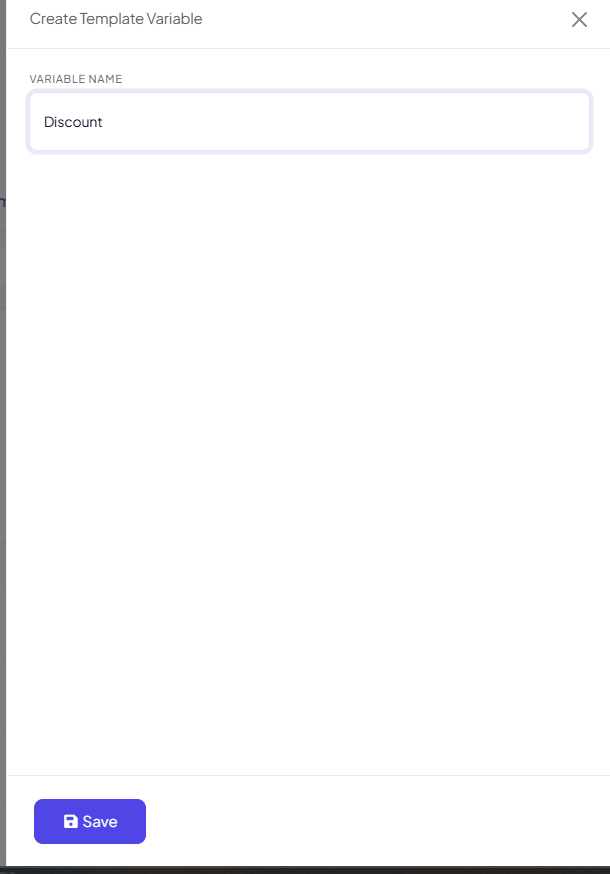
    Create Template Variable modal with a Variable Name field filled in as Discount and a Save button

    Enter a Variable Name with no spaces or special characters, e.g. Discount, OrderID, BookingID, CompanyName.

  3. 3

    Save

    The variable now appears in the list and can be inserted into any template's Message Body using the Variables button in the toolbar.

If the value you need is instead something permanent about the customer (their email, city, or company) rather than something that changes per message, use a Custom Field instead of a Template Variable — see Template Variables vs Custom Variables — What's the Difference?.

Insert a variable using the #!VariableName!# syntax — note this is different from a Custom Field's single-# syntax:

text
Hi #User-Name#

Get #!Discount!# % OFF on your next purchase!

Your order #orderid# has been confirmed for #!Discount!# off.

Before sending, assign each variable a real value:

PlaceholderTypeValue
#User-Name#NameRahul
#orderid#Custom FieldORD12345
#!Discount!#Template Variable20

The customer receives:

text
Hi Rahul

Get 20 % OFF on your next purchase!

Your order ORD12345 has been confirmed for 20 off.

Template Variables let you personalize a single template per customer, reuse it across many subscribers, and avoid creating a near-duplicate template for every small change.

This page now walks through building the template itself, step by step.

Prerequisites#

  • A WhatsApp Business Account connected to ChatSyncs.
  • A clear idea of your message content — including any variables, buttons, or footer text you need.

Open Message Templates#

  1. 1

    Open Chatbot Manager

    Go to Chatbot Manager.

  2. 2

    Open the Automation tab

    Select Automation.

  3. 3

    Click Message Templates

    Select Message Templates from the sub-tabs.

  4. 4

    Click Create

    Click Create and pick a template type.

Message Templates list with the Create dropdown open showing General Template, WP Template, Mixed Template, Carousel Media Template, Carousel Product Template, and Default Template

Six template types are available from the Create dropdown:

  • General Template — the standard single-message template builder.
  • WP Template — another single-message builder, mainly used for Marketing templates.
  • Mixed Template — supports all three template categories (Marketing, Utility, Authentication/OTP) from one builder.
  • Carousel Media Template and Carousel Product Template — swipeable multi-card templates; see How to Create and Use Carousel Media Templates for the full walkthrough.
  • Default Template — system-created templates you don't build yourself.

General Template#

Message Template builder showing Template Name, Locale, Template Category, Header Type, Message Body toolbar, Footer Text, button configuration, and a live preview panel

General Template is the standard builder — the same fields described under Mixed Template below (Template Name, Locale, Template Category, Header Type, Message Body, Footer Text, Buttons, live preview) apply here too.

Mixed Template#

A Mixed Template can be submitted as Marketing, Utility, or Authentication (OTP) — useful when you want one builder for any category instead of switching tools. See Utility vs. Marketing Templates for help choosing the right one.

Template Category toggle with Utility, Marketing, and Auth/OTP options, and Header Type dropdown expanded showing No Header, Text, Image, Video, and Document

Fields you fill in:

FieldNotes
Template NameA unique name, e.g. customer_registration, appointment_reminder.
LocaleThe template's language, e.g. English (US).
Template CategoryUtility, Marketing, or Auth/OTP.
Header TypeNo Header, Text, Image, Video, or Document.
Message BodyThe main text — supports Custom Fields, Variables, Name, and AI Rewrite (below).
Footer TextOptional text shown below the message, e.g. Powered by ChatSyncs.
ButtonsNone, Call To Action, or Quick Reply — see Buttons below.
Template PreviewA live preview of how the template will look in WhatsApp, shown on the right as you build.

Every field has a length limit — see Character Limits for Media Message Templates before you write a long message.

Custom Fields, Variables, Name, and AI Rewrite#

Message Body toolbar with four buttons — Custom Fields, Variables, Name, and AI Re-write — above a body reading Hi #User-Name#, Get #!Discount!# % OFF on your next purchase, using the pound-bang syntax for the Discount variable

The Message Body toolbar has four buttons, and each one inserts a different syntax — don't mix them up:

ButtonInsertsSyntaxExample
Custom FieldsA subscriber field#field_name# (single #)#customer_city#, #customer_email#
VariablesA reusable Template Variable#!variable_name!# (#!...!#)#!Discount!#, #!OrderID!#
NameThe subscriber's name specifically#User-Name##User-Name#
AI Rewrite——Generates or improves the wording automatically, doesn't insert a placeholder

Variables use #!...!#, not #...#. Typing #Discount# instead of #!Discount!# won't be recognized as a Template Variable — use the Variables button to insert it correctly rather than typing the syntax by hand.

Example — a message built from all three placeholder types:

text
Hi #User-Name#

Get #!Discount!# % OFF on your next purchase!

Enjoy an exclusive #!Discount!# discount for a limited time. Use code **SAVE #!Discount!#** at
checkout.

Before sending, #User-Name# resolves to the subscriber's name automatically, and #!Discount!# resolves to whatever value you assign that Template Variable (see Add a reusable Template Variable below) — the same variable can appear more than once in one message.

See Template Variables vs Custom Variables — What's the Difference? for the full difference between a Custom Field and a Template Variable, and how each behaves when sending via the API.

Message Template builder with a saved template and a success toast confirming it needs WhatsApp approval before use

Saving the template shows a confirmation toast like the one above, confirming it's been submitted for Meta's review.

Buttons#

Every builder has the same three Button options: None, Call To Action, or Quick Reply.

Call To Action button configuration with Button Type set to URL (with a Phone option in the dropdown), Button Text, and an Action Value field with its own Variables button, plus a second optional button row

Call To Action opens a Button Type dropdown — URL or Phone — plus Button Text and an Action Value (the URL or phone number itself). Action Value has its own Variables button, so the destination can be personalized per subscriber too, e.g. https://example.com/order/#!OrderID!#. Up to two Call To Action buttons can be added.

Quick Reply button configuration with three Button Text fields filled in as Thank You, Not Intrested, and an empty third field

Quick Reply instead adds up to three plain Button Text fields — short replies a customer taps instead of typing, e.g. Thank You, Not Interested.

WhatsApp live preview showing the message with Discount and User-Name placeholders filled in, the footer Powered by Chatsyncs, and two Quick Reply buttons: Not Intrested and Thank You

The live preview panel updates as you configure buttons, so you can confirm exactly how they'll look before saving.

WP Template#

WP Template builder showing Template Name, Locale, Template Category, Header Type, Message Body toolbar with WP Variables, Footer Text, and Call To Action / Quick Reply button configuration

WP Template is another single-message builder, mainly used for Marketing templates. It includes the same building blocks as the other builders:

  • Unique Template Name
  • Locale selection
  • Header options
  • Custom Fields
  • WP Variables (WP Template's own variable picker, alongside Custom Fields)
  • AI Rewrite
  • Footer Text
  • Call To Action buttons
  • Quick Reply buttons
  • Live preview

Supported placeholders work the same as other builders — Custom Fields like #phone# or #email# (single #), and Template Variables like #!OrderID!# or #!BookingID!# (#!...!#) — see Custom Fields, Variables, Name, and AI Rewrite above for the full syntax reference.

Common use cases: promotional offers, product launches, property marketing, service promotions, lead follow-ups.

Approval status & Sync Template#

After saving, every template appears in the Message Templates list with a status — all custom templates must be reviewed by Meta before use:

Message Templates list with a Sync Templates button and Approved/Pending status badges highlighted
  • Pending — the status right after saving, before it's been sent to Meta for review.
  • Submitted — sent to Meta and awaiting review; a template moves from Pending to Submitted once you click Sync Templates.
  • Approved — ready to use in Keyword Replies, Broadcasting, Sequences, WhatsApp Flows, and AI Agent automations.
  • Rejected — see Why Templates Get Rejected and How to Fix Them for the full status list (including Paused and Disabled), the fix, and how to resubmit.

Click Sync Templates any time to pull the latest status from Meta.

Meta usually reviews templates quickly, but a new WhatsApp Business account may take up to 24 hours or longer. If the status doesn't update right away, click Sync Templates, wait a few minutes, and check again.

Using the template#

Once Approved, send it via:

  • Broadcasting — a one-to-many send to a segment of your subscribers, see Broadcast Campaign.
  • Live chat — sent directly to one subscriber from the inbox.
  • Shopify & WooCommerce messages — automated order/shipping messages, if you've connected a store.
  • Keyword Replies, Sequences, WhatsApp Flows, and AI Agent automations — any automation that needs to message a customer outside the 24-hour window.

Broadcasting with Template Buttons#

If a WhatsApp template contains buttons, it can be integrated with a Keyword Replies flow during broadcasting — tapping a template button hands the customer straight into that flow.

Prerequisites:

  • A WhatsApp template with buttons, submitted and Approved by WhatsApp.
  • The Keyword Replies flow you want the button to trigger, already built.
Configure Action Button modal with 24 hours / Anytime messaging window options, a Select template field, and a list of flows to trigger
  1. 1

    Open the Broadcast module

    Go to Broadcasting.

  2. 2

    Select the approved template

    Pick the WhatsApp template with buttons.

  3. 3

    Open Configure Action Button

    Navigate to Configure Action Button.

  4. 4

    Choose the messaging window

    24 Hours (within the customer service window) or Anytime (non-promotional).

  5. 5

    Select the Keyword Replies flow

    Pick which flow the template's button should trigger.

  6. 6

    Save and start the broadcast

    Save the configuration, then start the broadcast.

Example:

SettingValue
Templateutility_template
Messaging WindowAnytime
Keyword Replies flowLead Generation Bot

Flow:

text
Broadcast
    │
    ▼
Customer receives template
    │
    ▼
Customer taps a template button
    │
    ▼
Assigned Keyword Replies flow is triggered
    │
    ▼
Bot continues the conversation
  • Only Approved templates can be used for broadcasting.
  • The Keyword Replies flow must be built and saved before sending the broadcast.
  • A template button is only the entry point — verify the assigned flow with a test broadcast before sending to production contacts.

Related Documentation#

  • Why Templates Get Rejected and How to Fix Them — statuses, the duplicate-and-resubmit flow, and a pre-submit checklist.
  • Character Limits for Media Message Templates — header, body, footer, and button length limits.
  • Utility vs. Marketing Templates — which Template Category to pick.
  • Understanding Conversations and Their Types — how category choice affects what a template costs to send.
  • How to Create and Use Carousel Media Templates — the full carousel walkthrough, limits, and troubleshooting.
  • Create Templates in WhatsApp Manager and Sync to ChatSyncs — building templates in Meta's own dashboard instead.
  • Template Variables vs Custom Variables — What's the Difference? — which one to use, and how each behaves in the API.
  • Templates to Restart Conversations After Non-Working Hours — ready-to-use templates for a missed reply window.
  • Understanding WhatsApp Quality Rating — how blocks and reports can get a template Paused or Disabled.

Frequently asked#

How do I create a WhatsApp template in ChatSyncs?

Go to Chatbot Manager → Automation → Message Templates → Create, pick a template type (General, WP, Mixed, Carousel Media, Carousel Product), fill in the name, category, body, and any buttons, then save. It's submitted to Meta automatically and needs approval before use.

Do I need a Template Variable for every template?

No — only if part of the message changes every time you send it (a name, an order number). A template with fully static text needs no variables at all.

Why is my template stuck on Submitted?

Meta is still reviewing it. Click Sync Templates to pull the latest status — new WhatsApp Business accounts can take up to 24 hours or longer for the first review.

How do I personalize a template with a customer's name or order number?

Use the Name button for the subscriber's name (#User-Name#), a Custom Field for other subscriber data like an order number (#orderid#), or a Template Variable for a reusable placeholder (#!Discount!# — note the #!...!# syntax, different from a Custom Field's single #). Assign each a real value before sending, and it's automatically replaced per customer.

What's the difference between a Carousel Media and Carousel Product template?

Carousel Media is general-purpose — any cards with image/video and text, good for showcases or campaigns. Carousel Product is built specifically for selling products, with a Product Image, Name, Description, and Button on every card.

Can I use AI to write my template content for me?

Yes — click AI Rewrite inside the Message Body (or a carousel's Message Bubble/Card Body) to generate or improve the wording automatically.

What's the difference between General Template, WP Template, and Mixed Template?

All three are single-message builders with largely the same fields (Template Name, Locale, Category, Header Type, Message Body, Footer Text, Buttons, live preview) — pick whichever entry point you land on in the Create menu.

Can a template button start a bot flow automatically?

Yes — under Broadcasting with Template Buttons, use Configure Action Button to assign an approved template's button to a specific Keyword Replies flow, so tapping it hands the customer straight into that conversation.

Why can't I send my new template yet?

It needs Meta's approval first. Check its status on the Message Templates list — see Why Templates Get Rejected and How to Fix Them if it shows Rejected.

  • A template can't be used anywhere until it's Approved — Keyword Replies, Broadcasts, Sequences, WhatsApp Flows, and AI Agent automations all require an approved template.
  • Status doesn't refresh on its own — click Sync Templates to check Meta's latest decision; it won't update in real time.
  • A Rejected template needs a fix, not a resend — review the content against Why Templates Get Rejected and How to Fix Them before resubmitting.

Watch the video lesson

Video lesson · 4:22How to Use Custom Fields in Message Templates in ChatSyncs Video lesson · 5:42How to create Message Template in ChatSyncs

Was this page helpful?

Still stuck? Open a support ticket and our team will help.

PreviousMessage Templates in ChatSyncsNext Why Templates Get Rejected and How to Fix Them in ChatSyncs

On this page

  • Variables are the whole point
  • Create a Template Variable first
  • Prerequisites
  • Open Message Templates
  • General Template
  • Mixed Template
  • Custom Fields, Variables, Name, and AI Rewrite
  • Buttons
  • WP Template
  • Approval status & Sync Template
  • Using the template
  • Broadcasting with Template Buttons
  • Related Documentation
  • Frequently asked