
How to Delete Your Phone Number on Meta
Remove your phone number from the WhatsApp Business API on Meta's side and disconnect it from ChatSyncs, so you can free it up or connect a different number.
On this page
- To change the phone number connected to ChatSyncs, the old number has to be deleted first.
- Then a new one gets connected from scratch.
- A number can't just be swapped in place.
Delete the phone number in WhatsApp Manager#
Open your Business Portfolio's settings
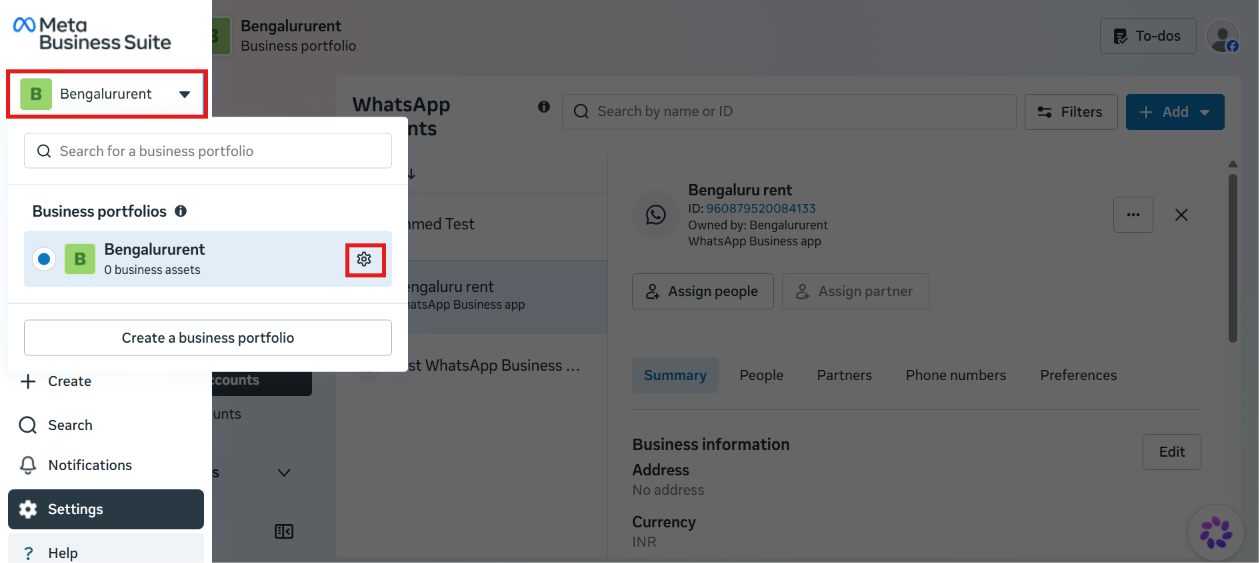
In Meta Business Suite, click your business portfolio name in the top-left switcher, then click the gear icon next to it to open Settings — making sure the correct Meta Business Account is selected, the one linked to the WhatsApp Business Account you want to change.
Open WhatsApp Manager
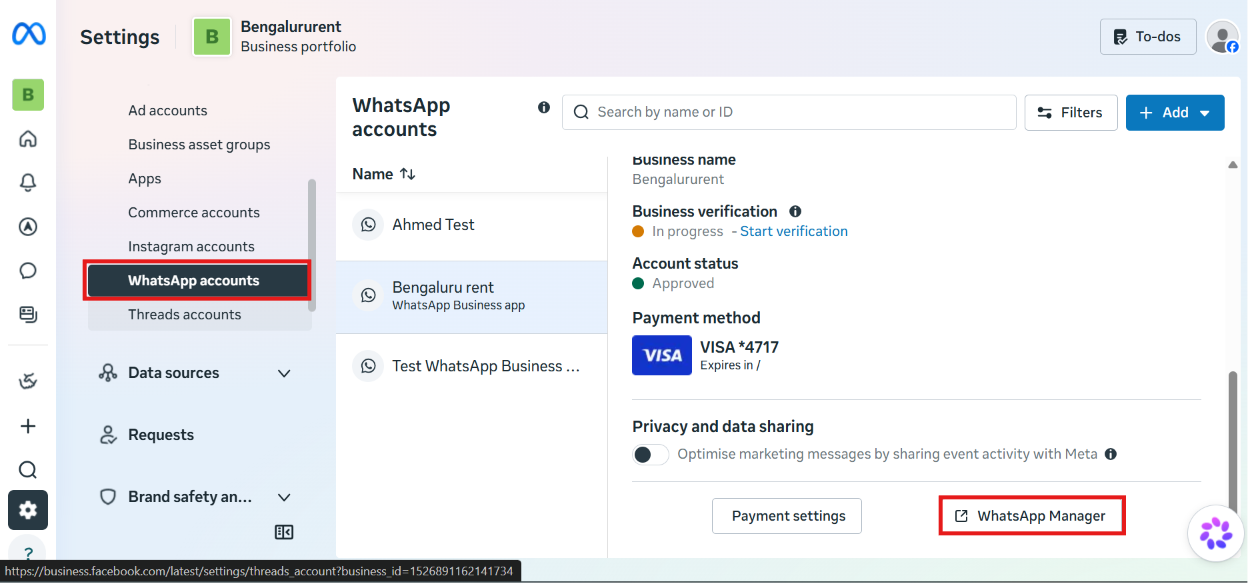
Under Accounts → WhatsApp accounts, select the account, then click WhatsApp Manager.
Delete the number
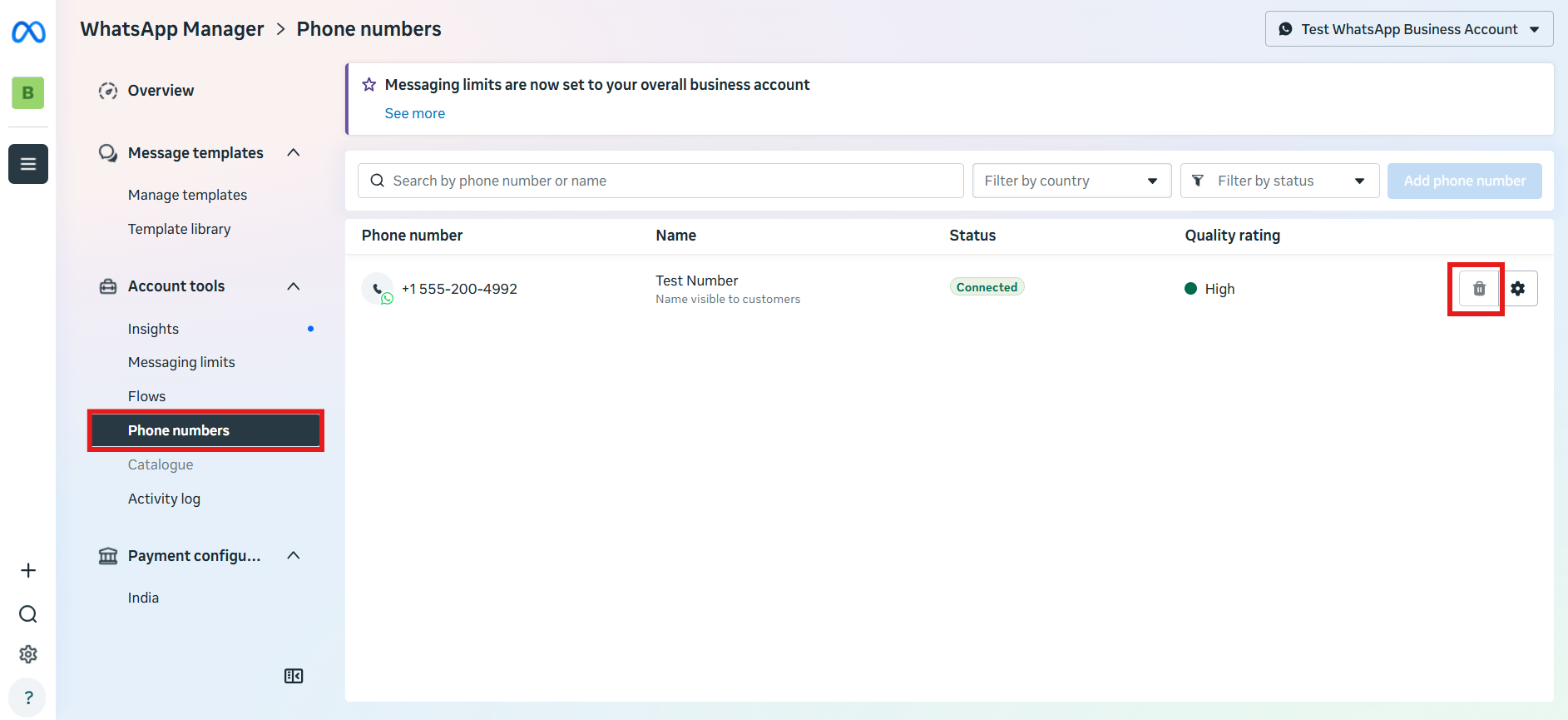
On the Phone numbers page, find the number in the list and click the trash can icon next to it to remove it.


Delete the associated WhatsApp Business Account#
Open WhatsApp Business Accounts
In WhatsApp Manager, open the WhatsApp Business Accounts page.
Delete the account
Find the WhatsApp Business Account (WABA) linked to the number just removed, and delete it too.
Remove the disconnected number from ChatSyncs#
Go to Connect Account in ChatSyncs, find the now-disconnected number under Business Accounts, open its ⋮ menu, and click Delete phone number.

Add a new phone number#
Once the old number is fully removed on both Meta's side and ChatSyncs' side, follow How to Connect Your Number to ChatSyncs to connect the replacement number.
Frequently asked#
Can I just swap in a new phone number without deleting the old one?
No — the old number has to be deleted from WhatsApp Manager and disconnected from ChatSyncs first, then the new number is connected as a fresh setup.
What happens to my message templates and contacts when I delete a number?
They're deleted along with the number — templates, the messaging limit tier, and ChatSyncs contacts/chat history for that number are all removed and can't be recovered.
Do I need to delete the WhatsApp Business Account too, or just the phone number?
Both. Deleting only the phone number from the Phone Numbers page leaves the WABA behind — remove the associated WhatsApp Business Account as well before reconnecting a new number.
I actually want to reuse a number that's on my personal WhatsApp, not delete a ChatSyncs number — is this the right guide?
No — see How to Migrate from WhatsApp App to a ChatSyncs Business Account instead. This guide is for removing a number already connected to the Cloud API.
Was this page helpful?
Still stuck? Open a support ticket and our team will help.